Python turtle online, free in your browser
CodeGrove runs Python's turtle module right in the browser. Type import turtle, give the turtle its moves and press Run, and the drawing appears next to your code.
Free, with no sign-in. Checked November 10, 2026.
How to run a turtle program online
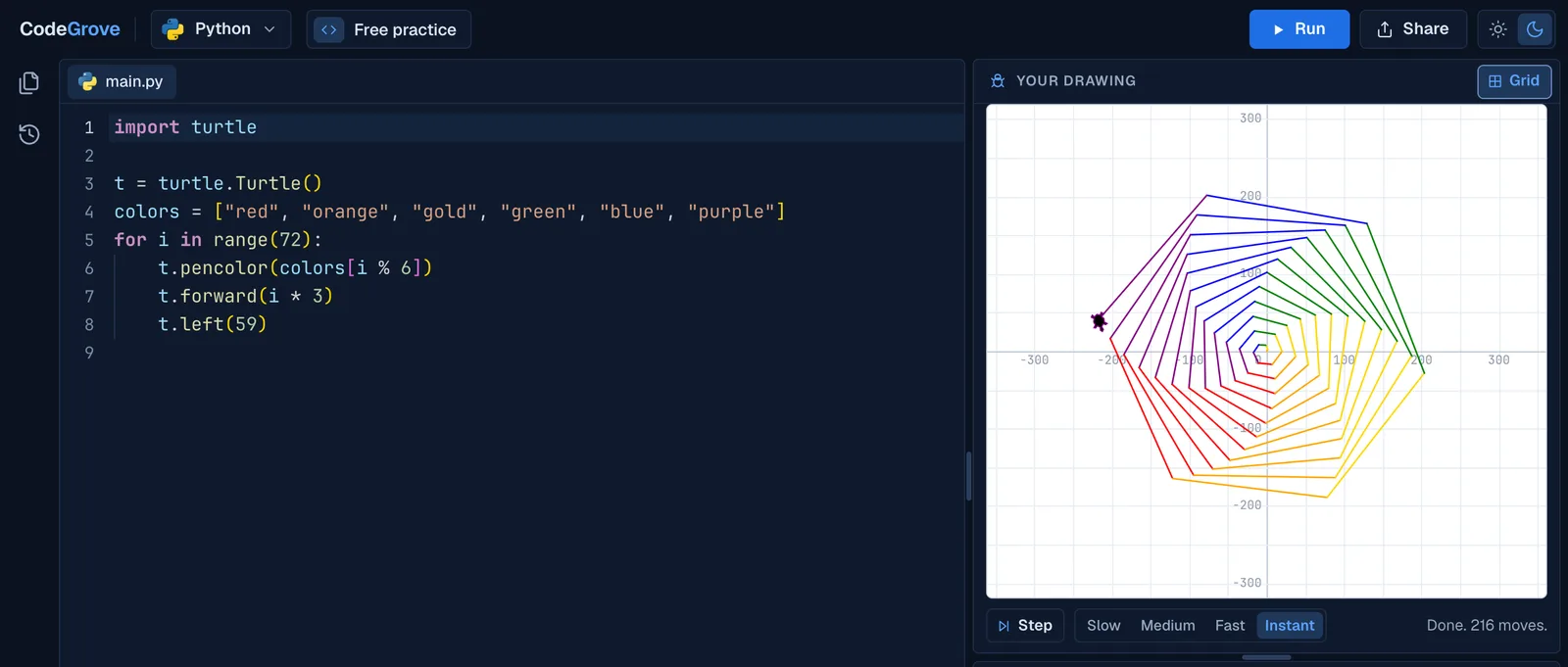
Open CodeGrove, type a turtle program and press Run. The drawing shows in the Your drawing panel, and the Output panel says how many moves the turtle made. There is nothing to install and no account to make.
Here is a short program worth running first. It draws a five-pointed star:
import turtle

t = turtle.Turtle()
for i in range(5):
    t.forward(150)
t.right(144)Each pass through the loop moves the turtle forward 150 steps and turns it 144 degrees. Five turns of 144 degrees add up to 720, two full circles, which is why the lines cross and make a star.
The buttons under the drawing replay it: Step goes one move at a time, and Slow, Medium, Fast and Instant set the pace. If a command is misspelled, CodeGrove says so and suggests the one you probably meant.
Five turtle programs to try
Each one opens in CodeGrove with the code already typed in. Press Run to watch it draw, then change a number and run it again.
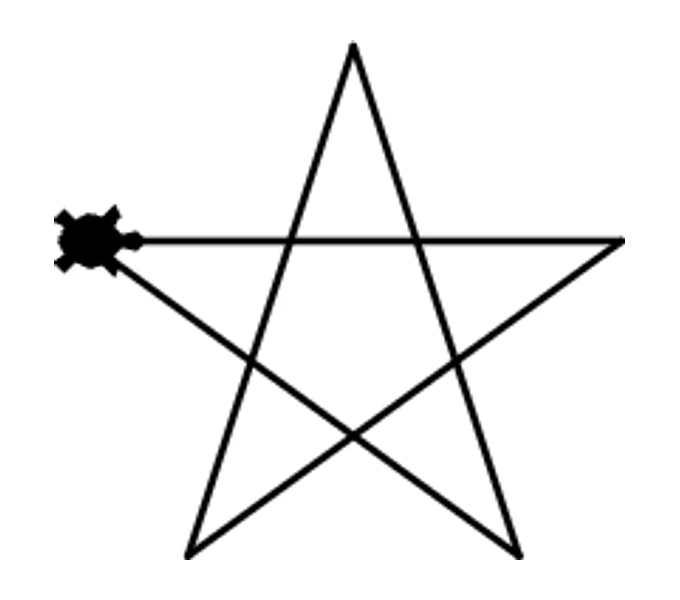
A five-pointed star
import turtle

t = turtle.Turtle()
for i in range(5):
    t.forward(150)
t.right(144)Try this: change 144 to 160 and range(5) to range(9) for a nine-pointed star.
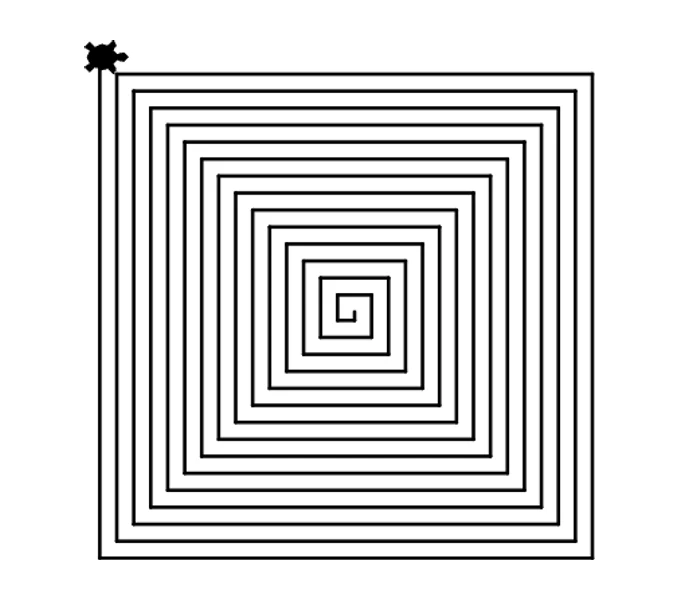
A square spiral
import turtle

t = turtle.Turtle()
t.speed(0)
for i in range(60):
    t.forward(i * 5)
t.right(90)Each side is 5 steps longer than the one before, so the square never closes. Try this: turn 91 degrees instead of 90.

A flower of circles
import turtle

t = turtle.Turtle()
t.color("crimson")
for i in range(12):
    t.circle(60)
t.right(30)Twelve turns of 30 degrees make one full turn. Try this: draw 36 circles and turn 10 degrees each time.
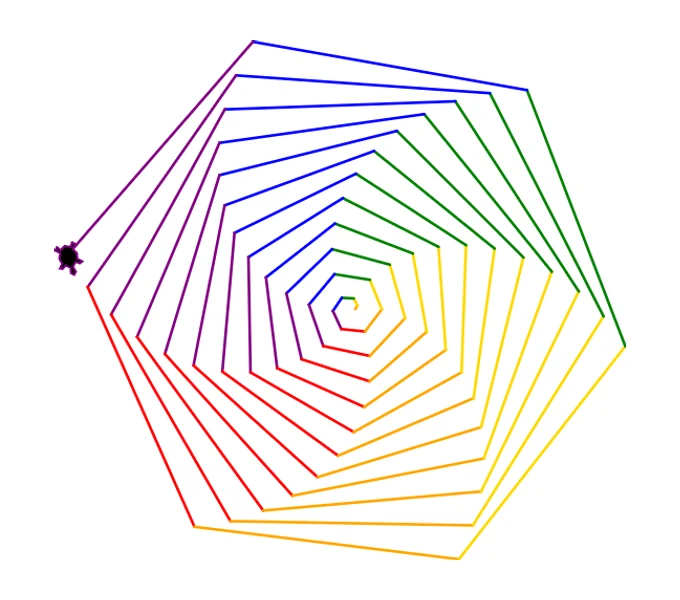
A color spiral
import turtle

t = turtle.Turtle()
colors = ["red", "orange", "gold",
          "green", "blue", "purple"]
for i in range(72):
    t.pencolor(colors[i % 6])
    t.forward(i * 3)
t.left(59)i % 6 picks the next of the six colors on every pass. Try this: turn 61 degrees instead of 59.
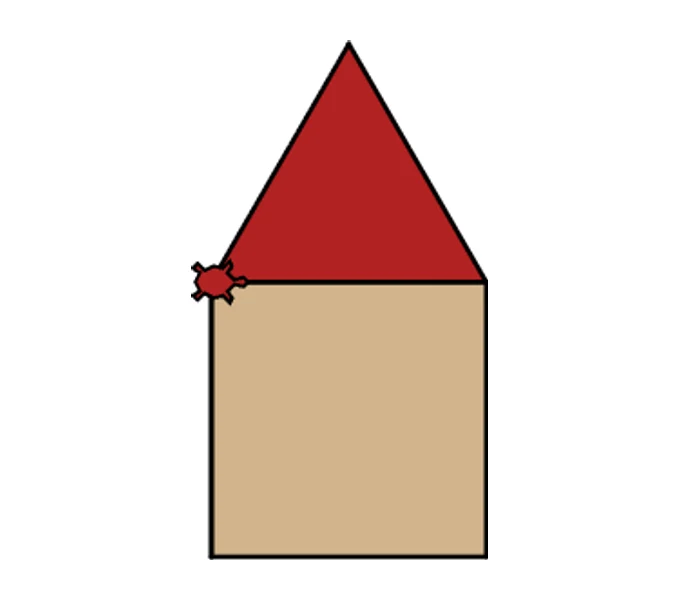
A house with a filled roof
import turtle

t = turtle.Turtle()
t.fillcolor("tan")
t.begin_fill()
for i in range(4):
    t.forward(120)
    t.left(90)
t.end_fill()

t.left(90)
t.forward(120)
t.right(90)
t.fillcolor("firebrick")
t.begin_fill()
for i in range(3):
    t.forward(120)
    t.left(120)
t.end_fill()begin_fill() and end_fill() color in the shape drawn between them. Try this: add a door with a smaller filled rectangle.
Turtle commands CodeGrove knows
CodeGrove's turtle follows Python's own turtle module, so most code from a textbook or a worksheet runs as written. These are the commands students use most:
| Command | What it does |
|---|---|
forward(n), backward(n) | Move n steps. fd and bk work too. |
left(degrees), right(degrees) | Turn. lt and rt work too. |
penup(), pendown() | Stop drawing or start again, to move without a line. |
goto(x, y), home() | Jump to a point, or back to the middle (0, 0). |
setheading(degrees) | Face a direction: 0 is right, 90 is up. |
circle(radius) | Draw a circle. circle(radius, extent) draws an arc. |
dot(size, color) | Draw a filled dot. |
color(), pencolor(), fillcolor() | Set colors by name, like "crimson", or as hex, like "#1F6FE5". |
begin_fill(), end_fill() | Fill in the shape drawn between them. |
pensize(n) | Set how thick the line is. |
speed(n) | Accepted, from 0 to 10 or a word like "fast". |
write("text") | Write words on the drawing. |
hideturtle(), showturtle() | Hide or show the turtle itself. |
Screen().bgcolor("name") | Set the background color. |
turtle.done() | Allowed. The drawing shows with or without it. |
A program can make up to 20,000 moves. Keyboard and mouse events such as onkey and onclick are not supported yet.
Turtle in a Python class
CodeGrove is the code lab for our two Python courses, and Python Programming 2 has turtle drawing tasks that CodeGrove checks for the student, from shapes in Unit 1 to a forest fire simulation in Unit 6. Any teacher can use the editor itself for free, with their own programs.
To hand a turtle program to a class, open it in CodeGrove, press Share, then Copy link, and post the link. The guide for teachers covers collecting the work and checking a whole class at once.
Common questions
Do I need to install Python to use turtle?
No. CodeGrove runs Python, turtle included, inside the browser. It works on Chromebooks, Windows and Mac laptops, and tablets turned sideways, with no install and no sign-in.
Is it free?
Yes, for students and teachers. There are no accounts and no ads.
Can students save their turtle programs?
CodeGrove saves the code in the browser on that device and keeps a History of every run. To move a program to another device or hand it in, use Share, then Copy link or Download file.
Why did my turtle stop partway through?
A program can make up to 20,000 moves. That stops a loop that never ends from freezing the page. If you hit the limit on purpose, make each step bigger or the loop shorter.
Can I control the turtle with the keyboard?
Not yet. Keyboard and mouse events such as onkey and onclick are not supported, so games that wait for a key press will not run. Every drawing program on this page will.
Does turtle.done() work?
You can leave turtle.done() or turtle.mainloop() at the end of a program. CodeGrove accepts them, and the drawing shows either way.
More about CodeGrove
Try it with your class
CodeGrove is free for students and teachers. There is nothing to install and no account to make: open the link on a Chromebook, laptop or tablet and start writing code.