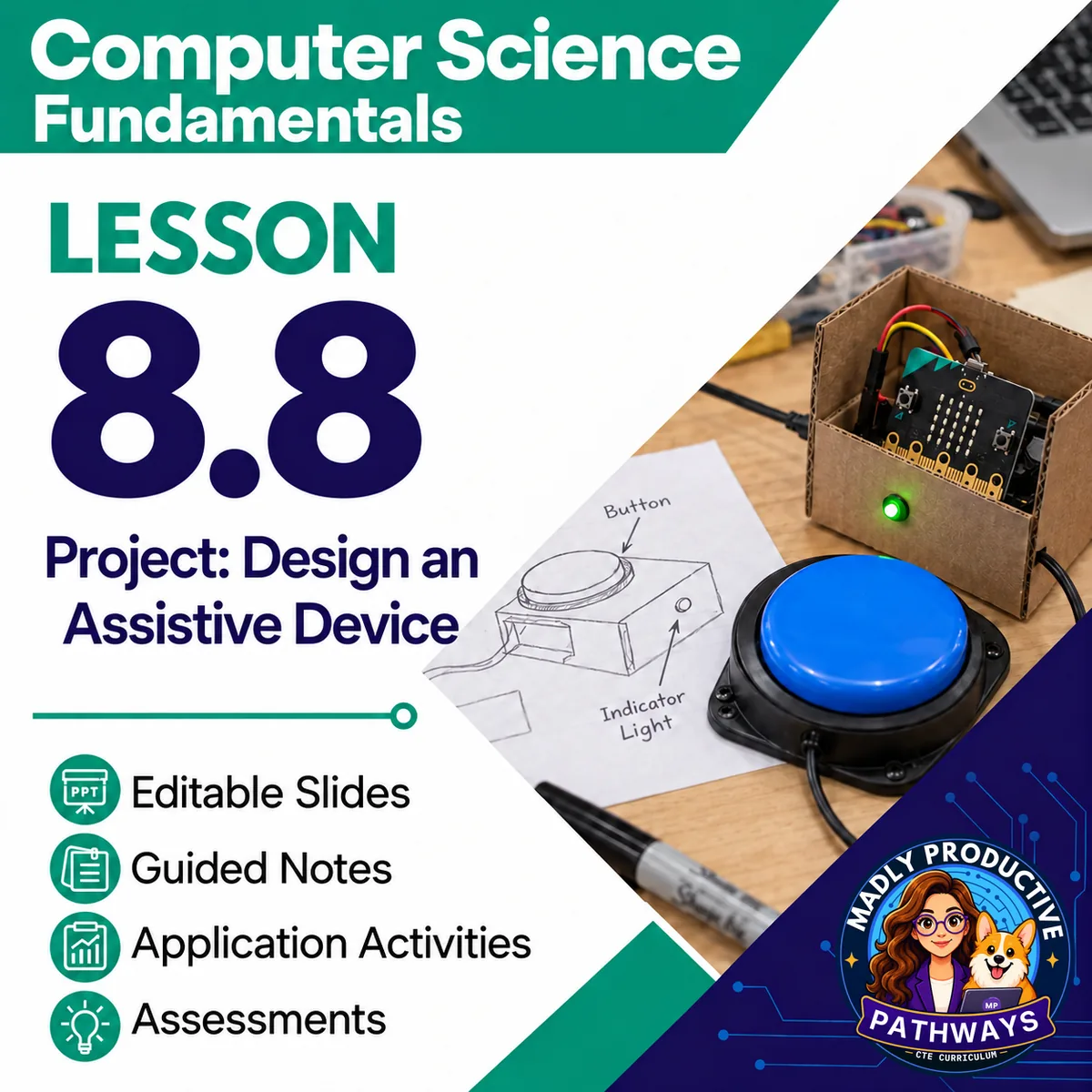
Project: Design an Assistive Device
 Computer Science Fundamentals Grades 9–12 3-day lesson 26 deliverables
In this micro:bit project, students design an assistive device that helps one person do an everyday task. At Basswood Road Community Center's Helping Hands maker night, they pick a user and plan an input and an output that fit that person.
● Instant download · Lifetime access · Editable & print-ready
 Print + digitalPDF, PowerPoint, Word & Google
 Answer keysA key for every page
 Built-in assessmentExit tickets + project rubric
 45-minute daysEvery day planned and timed
What does this lesson cover?
Students often think an assistive device has to be high-tech and expensive. This project shows them that a simple device can help one person with an everyday task when it is designed around that person's needs. Each day has a clear goal, from the plan to the first version and the pitch, so the project stays on track.
The activity on Day 2 and Day 3 has an online version that uses MakeCode, Microsoft's free editor. Students build version 1 in MakeCode, a free website with a micro:bit simulator, on a computer or tablet, with no account and no micro:bit. Then they copy the program and what happened onto the sheet. Every online version comes with a paper version, so no internet is needed.
Build It and Try It
Students build version 1 of an assistive device for one neighbor at a community center, in MakeCode or on paper, try it in every case and write what happened.
Everything that's included
 00 Start Here
- READ FIRST: every file in the lesson and when you use it
- Teacher guide and pacing: the plan for each day, what to print and how to grade
- Skills map: which standards each day teaches
 01 Present
- One editable PowerPoint deck for all three days, 23 slides, with speaker notes
- Slide script: the speaker notes, printed
- Bell ringers: a short warm-up for each day
 02 Student Handouts
- Guided notes for all three days, in PDF and editable Word, with the word bank on the page
- Vocab slip: the lesson's words and what they mean, on one page
 04 Activities
- The User and the Plan: meet four neighbors from Basswood Road Community Center, pick one user and plan a device: the need, an input, an output and a labeled sketch
- Build It and Try It: build version 1 of their device's program in MakeCode or on paper, try it in every case and write what happened
- Improve It and Pitch It: partners try each other's devices the way each user would, then students make one change for version 2, name one limit and pitch the prototype
 05 Assessment
- Exit tickets, one per day: quick questions that show who needs more help
- Project rubric: what the whole project is graded on, 16 points
06 Answer Keys
- 4 answer key files: a key for each day (its bell ringer, notes and exit ticket) and the activity keys

 Digital: Google Forms™ + Google Slides™
- 3 Google Forms™ of the exit tickets, ready to copy into your Drive
- The multiple choice grades itself, and you grade the written answers
- A Google Slides™ copy of the deck, with the same slides and speaker notes, for Google Classroom™
 Online: MakeCode
- MakeCode, Microsoft's free editor: the online version of the Day 2 and Day 3 activities, with a micro:bit simulator
- No account and no micro:bit needed
- Every online version has a paper version, so no internet is needed
Why teachers love this lesson
 Students design for one person
They learn that people with the same physical challenge can need different help, so they design for the user they picked.
 Every pitch names a limit
Students say what their prototype can do and one thing it can't do yet, so their pitch is honest.
Print and digitalEvery page is a print-ready PDF, and the Google Forms™ and Google Slides™ let you teach the same lesson in Google Classroom™.
Real online activitiesStudents can use MakeCode on a computer or tablet, and every online version has a paper version that works with no internet.
A key for every pageEvery day has its own answer key, and every written question has a sample answer and what to look for.
Every day fits a 45-minute classEach day's plan is timed activity by activity against real reading and writing speeds.
What Teachers Say
Be the first to review this
Reviews help me a lot, and they help other teachers pick the right resources for their classes. It takes about a minute.
Leave a reviewQuestions teachers ask
How do I get the files after I buy?
Instant download right after checkout: PowerPoint and Word files you can edit, print-ready PDFs, and links that copy the Google Forms™ and Google Slides™ into your Drive.
Can I buy the whole unit or course instead?
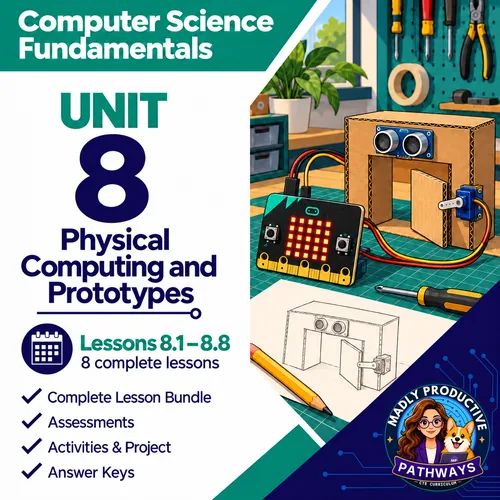
Yes. This lesson is part of the Unit 8 bundle and the complete Computer Science Fundamentals course. Both cost less than buying the lessons one at a time.
Is this AP Computer Science?
No. It is a full-year, non-AP intro course for grades 9 to 12. For AP, see AP Computer Science Principles and AP Computer Science A.
What formats are the files in?
Every page is a print-ready PDF. The slides are an editable PowerPoint and the guided notes an editable Word file. The exit tickets also come as Google Forms™, and the deck as Google Slides™.
Which standards does it cover?
Written for Florida's Advanced Information Technology course (9007610). The skills map in the lesson shows which standards each day teaches.
Do I need micro:bits or robots?
No. MakeCode is a free website with a micro:bit simulator, and every online version comes with a paper version.